Category: Seller Guide
How to Register as a Seller on Tradoi: A Step-by-Step Guide
By Tradoi Team · Published 2026-04-13 · Updated 2026-08-21
Registering as a seller on Tradoi means setting up a verified Digital Store and putting your first product into search, so real buyers can find you and send you an inquiry. It is free for our founding sellers and takes about ten minutes. Every seller is verified before they can list. Buyers are checked too: every buyer confirms a phone and email before they can reach you, and buyers registering as a business are verified more deeply. So the inquiries that land in your inbox come from real, contactable buyers who meant to find you.
Those checks shape the whole setup. If you have paid a B2B directory for leads that turned out fake or irrelevant, this is the part that is built differently. Verification is the floor to be on the platform at all, not a paid badge some buy and others skip.
The path runs in order: sign up with your phone or email, add your business details, verify your email and business, build your Digital Store, then list your first product. Each step below names the exact button on screen and ends on what it gives you. If you would rather start now, create your seller account and follow along.
What You'll Need
- Your mobile number or business email. You sign in with a one-time code, so there is no password to remember
- Your business registration document, as a PDF or a clear photo
- A square logo and a cover photo for your store
- A few clear photos of your first product
- Your real capacity, staff count, and years in business
- Exporters only: your IEC document
What Do I Need to Sell on Tradoi?
Less than most platforms ask for. You need a phone number or a business email to sign up, your business registration document to verify, and a few photos to build your store and your first listing. That is the whole list.
There is no password and no long form. You sign in with a one-time code each time, and the setup uses progressive steps, so you are never staring at fifteen empty fields at once. The one thing worth having ready before you start is your business registration document, because verifying it is what lets your products go live.
Sign Up with Phone or Email
Verifies you as a real person and starts building your verified standing.
Open tradoi.com and tap 'Start Selling' on the homepage, or 'Get Started' in the top menu. You can start with a phone number, an email address, or your Google account, whichever is quickest.
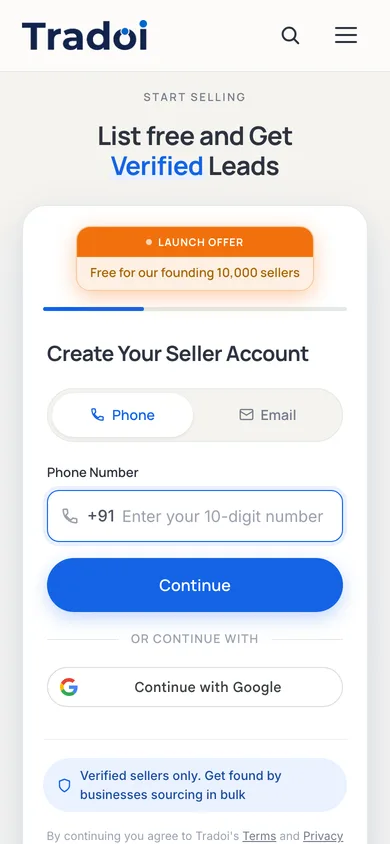
- Pick the Phone or Email tab. Both work the same way.
- Enter your number or email, then type the 6-digit code we send you.
- If you are already registered, we send you to Sign In instead, so you never end up with a duplicate account.
- Whichever method you choose is verified right here, the moment you sign up.
Add Your Business Details
This is what buyers see at the top of your store.
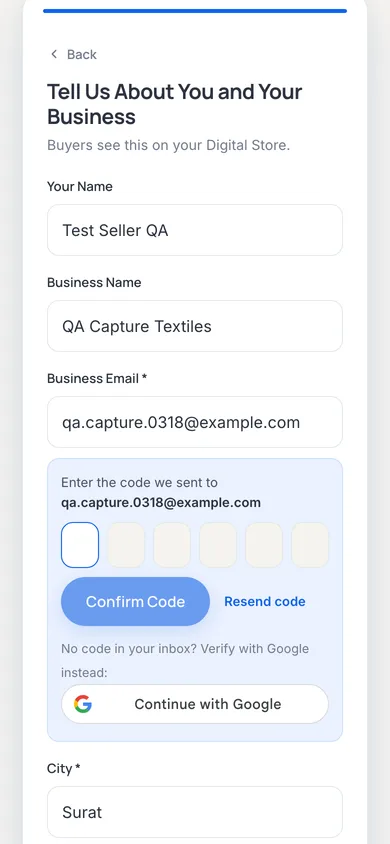
After the code, Tradoi walks you through a short Set up your store sequence with a progress rail, so you always know how much is left. It starts with four quick fields: your name, business name, business email, and city. Then come three quick taps, each covered below: what kind of supplier you are, the categories you sell in, and how far you sell. None of it takes long, and it saves as you go.
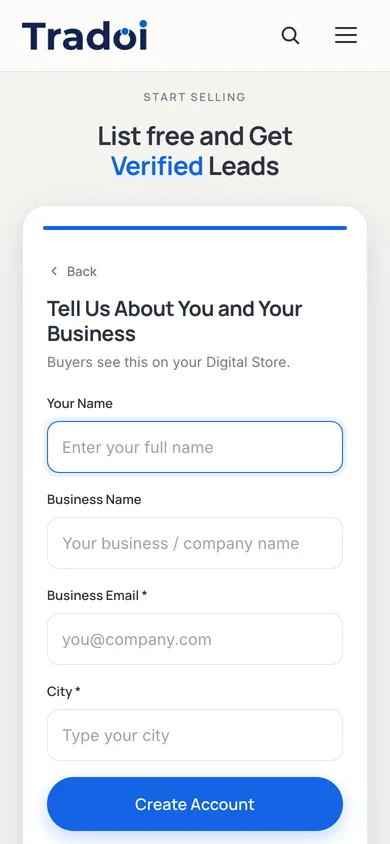
Tell Us About You and Your Business
- Your Full Name is the business owner or main contact.
- Your Email is where buyers will reach you, and you will verify it shortly. If you signed up by email, it is already filled in.
- Business Name should be your legal or trade name, written exactly as you want it shown on your store.
- For City, start typing and pick from the list. The state fills in on its own. Then tap Continue.
Choose Your Business Type
Pick from Manufacturer, Wholesaler, Distributor, Trader, Retailer, or Service Provider. You can choose up to three, and your first pick is your primary type, the label that tells buyers what kind of supplier you are.
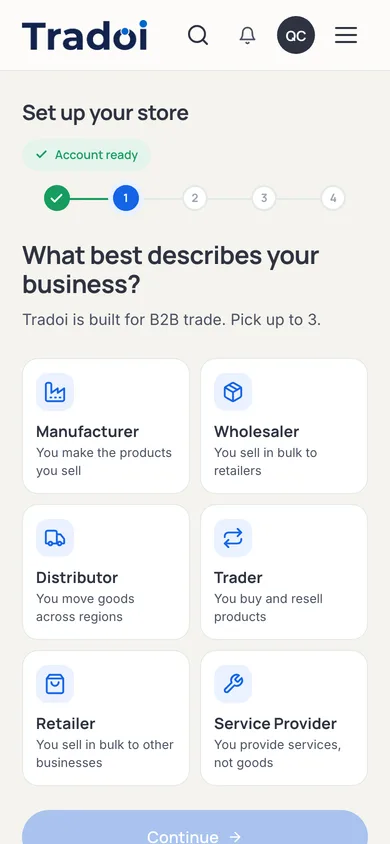
- Most sellers are one or two types. Pick more only if it is genuinely true.
- You cannot change this yourself later, though an admin can fix a real mistake, so take a second to get it right.
Which Categories Do You Sell In?
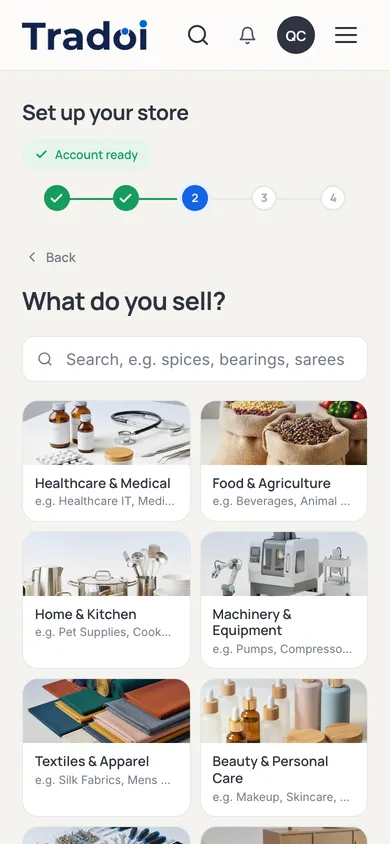
Next you pick one to three categories that describe what you sell. This is a quick tap, not a form, and you can skip it and add it later if you are not sure yet.
It is worth the few seconds, though. Categories are how buyers filter, and they decide which searches your store can appear in. Choose what you genuinely stock rather than everything adjacent; a precise category brings fewer, better-fitting inquiries, and it lets Tradoi show you where demand is building in your space.
How Far Do You Want to Sell?
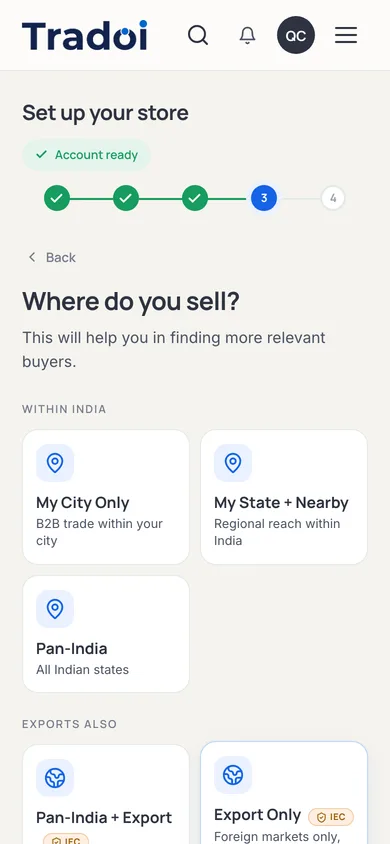
Last comes reach: your city, your state and nearby, or all of India, with export options in their own section for sellers who hold an Import Export Code. Wider is not better. Reach decides who sees you, and honest reach brings you more of the right buyers and fewer of the wrong ones, so the inquiries stay worth answering.
Selling abroad? Flag here that you are open to export buyers. To actually appear in the export filter later, you will also need your IEC verified, which we cover at the end. Tap Continue, and Tradoi walks you straight into the step that takes your store live: verifying your business.
Verify and Go Live
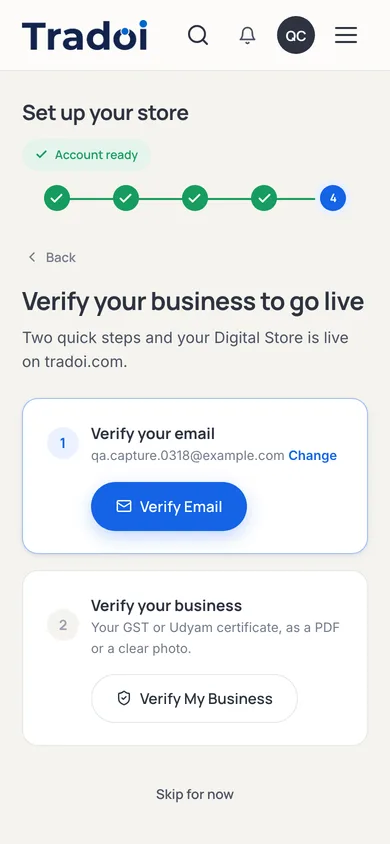
Right after reach, Tradoi drops you on a guided 'Verify and go live' step. Your phone is already ticked from signup. What is left is your email, if you signed up by phone, and your business document, the one check that takes your store live. You can finish both in one sitting right here, or skip to your dashboard and pick them up later from the same card at the top. Until your business is verified, your products cannot go public. The next step walks through both checks.
Verify Your Email and Business
Business verification is the badge buyers look for first, and it is what lets you publish.
Do this in the guided step during signup, or later from the card at the top of your dashboard. The checks work the same in both places, and your phone is already done. Here is how to finish email and business.
| Verification | Where You Do It | What It Gives You |
|---|---|---|
| Phone | At signup, with a one-time code | Confirms a real, reachable person. Done before you reach the dashboard. |
| During signup, or the go-live card on your dashboard | Adds a second contact buyers can reach you on, and ticks one of the three checks you need to publish. | |
| Business | The guided 'Verify and go live' step or its dashboard card | Earns your Verified badge. This is the one that lets your products go live. |
Verify Your Email
- If you signed up by phone, a quick email step appears; enter your address and tap Send OTP. (If you signed up by email, this is already done.)
- Enter the 6-digit code from your inbox, and check your spam folder if it is slow to arrive. The step turns green, and that is one of the checks you need before you can publish.
- A company-domain email like you@yourcompany.com reads as more credible to buyers than a generic free address.
Verify Your Business
- Tap Verify my business and upload your business registration document in the guided window that opens. Use a clear PDF or photo of the certificate rather than a blurry screen grab.
- Our multi-layer check confirms the name, number, and validity, then you confirm the details and your Verified badge appears. How long that takes, and the one case that needs review, is covered below.
- Not registered yet? MSME registration is free at udyamregistration.gov.in and takes about ten minutes.
Ready to Get Verified? Open a free Tradoi store, verify your business in one sitting, and start showing up to real buyers. Start Selling, Free
Build Your Digital Store
Your public storefront, the page buyers land on when they shortlist you.
Open Edit My Store from your seller menu. This is the page a buyer reads when they are deciding whether to reach out, so it is worth a few honest minutes.
- Add a clean square logo and a cover photo, ideally a banner shot of your factory, your products, or your team.
- Write a Seller Bio of up to 160 characters. Keep it to one tight line, and tap Enhance with AI if you want help sharpening it.
- Fill in your Business Description of up to 2,500 characters. This is the longer story, so write it in your own words first; the AI tightens what is already there and cannot invent a business it does not know.
- Add your real capacity, staff count, and years in business. Honest numbers build more trust than inflated ones.
- Your city and state come from your verified registration and lock once it is approved. Your street address and pincode stay editable. Save when you are done, and your store goes live.
List Your First Product
Turns a registered account into one buyers can actually find.
Tap 'Products', then 'Add Product'. Name the product, then answer the prompts about material, sizes, grade, packaging and who buys it. The AI builds the full listing for you to check on a review screen. Nothing goes live until you approve it, and once you do, your product is in search.
- Do the same for each product you sell. A fuller catalog ranks better in search.
- For the full playbook on photos, titles, and getting found, read How to List Products and Get Discovered.
How Long Does Verification Take?
Most business verifications complete at once. You upload a clear copy of your registration, our multi-layer check reads it, you confirm the details, and your Verified badge appears straight away. Email verification is instant too, as soon as you enter the code from your inbox.
The one case that takes longer is a blurry or hard-to-read scan, which goes into a short manual review of 24 to 48 hours. A clean PDF or a sharp photo almost always clears immediately, so it pays to upload a good copy the first time.
What Happens After You're Live
Your first product is live and your business is verified, so the platform starts working for you. Buyers who search for what you sell can find you, shortlist you, and send a Verified Lead. Your job now is to stay responsive and keep building.
- Tap Leads to see Verified Leads as they arrive. Reply fast, because quick replies strengthen your verified standing and your ranking. For more, read How to Respond to Verified Leads and Win More Orders.
- Every order runs through the Tradoi Digital Handshake, a step-by-step lifecycle you can document with photos at each stage to build lasting trust. Track each one under Orders.
- Tap My Digital Store any time to see exactly what a buyer sees.
- Want to stand out further? Tradoi's verification tiers are an optional, earned layer of credibility on top of the verification every seller already has.
- Exporters can upload their IEC under Documents as a PDF up to 10 MB to earn the Export Ready badge. It marks you as an export-ready seller that buyers abroad can filter for, and sits alongside your business verification rather than replacing it. For the steps, read the full IEC walkthrough.
Tradoi shows you to buyers only after your business is verified, and every inquiry you get comes from a real, contactable buyer who meant to find you.
Conclusion
That is the whole path. Sign up, add your business details, get verified, build your store, and list your first product. It is free for founding sellers and takes about ten minutes, and every step you finish strengthens the verified standing that decides how often real buyers see you. Get verified first, because it is what lets everything else go live.
Common Questions
How do I register as a seller on Tradoi?
Sign up with your phone or email, add your business details, verify your email and business, build your Digital Store, then list your first product. Each step is done on screen, and the whole thing takes around ten minutes. Your business has to pass verification before any product can go live.
Is registering as a seller on Tradoi free?
Yes. Registration is free for our founding sellers, who keep their free access, and the whole setup takes about ten minutes. You sign in with a one-time code, so there is no password to remember either.
What do I need to register as a seller on Tradoi?
A phone number or a business email to sign up, your business registration document to verify, and a few clear photos for your store and your first product listing. Exporters also need their IEC document to appear in the export filter. There is no password and no long upfront form.
How long does verification take on Tradoi?
Most verifications complete at once. You upload a clear copy of your business registration, confirm the details, and your Verified badge appears straight away. Email verification is instant once you enter the code. Only a blurry or hard-to-read scan goes into a short manual review of 24 to 48 hours.
Why do I need to verify before my products go live?
Tradoi shows you to buyers only after your business is verified, and buyers are checked before they can reach you: every buyer confirms a phone and email, and buyers registering as a business are verified more deeply. Until your phone, email, and business are all verified, your products cannot publish. Verification is the floor to be on the platform, not an optional extra.
Are all sellers on Tradoi verified?
Yes. A business cannot register and make its products public on Tradoi until it passes multi-layer verification, so every supplier a buyer meets is already verified. Verification is the requirement to be on the platform at all, not a paid badge that some buy and others skip.
Can I sell services on Tradoi, not just products?
Yes. When you choose your business type you can pick Service Provider, alongside Manufacturer, Wholesaler, Distributor, Trader, or Retailer. You may select up to three, with your first pick set as your primary type.
Do I need a password to sign in to Tradoi?
No. Tradoi uses a one-time code instead of a password. You enter your phone number or email, we send a 6-digit code, and you type it in. There is nothing to remember and nothing to reset, and the method you sign up with is verified the moment you use it.